How To Create Demo Account On Exness and Start Trading In Meta Trader MT5 on Mobile

A step-by-step walkthrough on creating your Exness demo account and adding virtual capital.
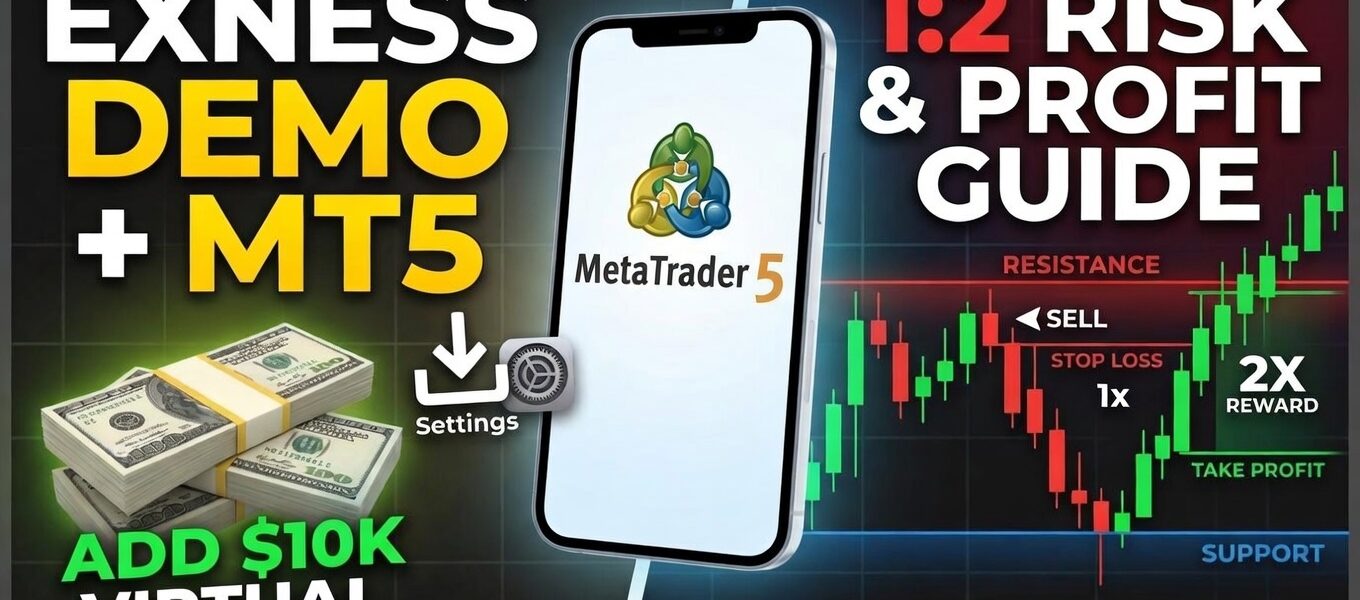
Discover how to install the broker on MT5 and place strategic trades based on Support and Resistance levels, all while maintaining a strict 1:2 risk-to-reward ratio and professional money management.
Create Exness Account

Mastering the mechanics of your trading platform is the first step toward becoming a professional trader. By utilizing a demo account, you can practice technical analysis and money management without risking actual capital. This guide covers the end-to-end process of setting up your Exness environment and executing trades with a disciplined 1:2 Risk-to-Reward ratio.
Nav Posted Content
Phase 1: Setup Your Exness Demo Environment
1. Create Your Demo Account
- Register: Visit the official Exness website and sign up with your email.
- Access Personal Area: Once logged in, navigate to the “My Accounts” section.
- Open New Account: Click the yellow “Open New Account” button.
- Select Demo: Choose the “Demo” tab. Select an account type (e.g., Standard or Pro) and ensure the platform is set to MT5.
- Configuration: Set your preferred leverage and create a strong trading password.
2. Add Virtual Funds
You can adjust your balance at any time to simulate realistic trading scenarios:
- In your Personal Area, find your Demo account.
- Click “Set Balance” (found under the three-dot menu if using grid view).
- Enter your desired amount (e.g., $100) and confirm. The balance updates instantly.
Phase 2: Install and Link MetaTrader 5 (MT5)
1. Download & Install
- PC: Download the MT5 installer from the Exness “Platforms” menu. Run the setup file and follow the installation prompts.
- Mobile: Search for “MetaTrader 5” on the Apple App Store or Google Play Store.
2. Login to the Broker
To link Exness to MT5, retrieve your credentials from the Exness Personal Area (under Account Settings > Account Information):
- MT5 Login ID: A unique string of numbers.
- Server Name: (e.g., Exness-MT5Trial6).
- Trading Password: The password you created during setup.
Pro Tip: On Desktop, go to File > Login to Trade Account. On Mobile, go to Settings > New Account and search for the Exness server.
Phase 3: Strategy, Risk, and Discipline
1. Support and Resistance Strategy
- Support (The Floor): A price level where a downtrend tends to pause due to buying power. Look for areas where the price has bounced upward multiple times.
- Resistance (The Ceiling): A price level where an uptrend tends to pause due to selling power. Look for areas where the price has dropped after hitting a peak.
2. Executing the 1:2 Risk-to-Reward Ratio
When price reaches a Support or Resistance level, execute your trade using these math-based rules:
- The Setup: If price hits Support and shows signs of a reversal, prepare a Buy order.
- Stop Loss (SL): Place this slightly below the Support level (this defines your “Risk”).
- Take Profit (TP): Measure the distance from your entry to your SL. Set your TP at exactly twice that distance.
3. Money Management Discipline
Success in trading is defined by how you manage your losses, not just your wins.
- The 1% Rule: Never risk more than 1% of your total account balance on a single trade. If your balance is $10,000, your Stop Loss should represent a maximum loss of $100.
- Position Sizing: Use a lot size calculator to ensure your SL distance aligns with your 1% risk.
- Consistency: Once the trade is live, do not move your Stop Loss out of fear or hope. Let the market hit either your SL or your TP.
Disclaimer: Trading involves significant risk. This article is for educational purposes only and does not constitute financial advice.